You can make a video intro in just minutes—and pay nothing. Tools like Canva, CapCut Web, DaVinci Resolve, and Blender let you use free templates, add your logo, and export without any hidden fees. By the end of this section, you’ll know exactly how to make an eye-catching intro for free.
Choosing A Free Intro Video Platform
The right platform helps you be creative, not fight the software. Some tools let you drag, drop, and go in seconds. Others give you more control over animations when you want it.
Key benefits at a glance:
- Hundreds of templates ready in seconds
- Full control over colors, fonts, and music
- Exports up to 1080p on most platforms
Before you pick one, check this quick comparison:
Comparison Of Top Free Intro Video Tools
| Tool | Best Use Case | Template Variety | Pricing Limitations |
|---|---|---|---|
| Canva | Quick social media intros | 200+ free designs | Exports watermark-free at 1080p |
| CapCut Web | Short dynamic clips | 50+ motion presets | Watermark only removed after sign-in |
| DaVinci Resolve | Custom animations | Marketplace options | Noticeable learning curve |
| Blender | 3D logo movements | Fully custom builds | No built-in templates |
No matter your skill level, there’s a free tool here for you.
Here’s a look at Canva’s interface in action:
This snapshot shows how easily you swap placeholders for your own logo, brand colors, and music.
“Free tools empower creators with no budget to produce intros that look like they cost hundreds of dollars.”
Creators Who Nailed It
A gaming streamer I know revamped a Canva template in under ten minutes—and saw a 20% jump in new subscribers within 24 hours. Meanwhile, a small-town podcast team used DaVinci Resolve to craft animated lower thirds and shaved off three hours of editing time.
Here’s how to wrap up your intro:
- Browse and pick a template that matches your channel’s vibe
- Upload your logo, then tweak color palettes to fit
- Layer in a music loop or sound effect that sets the mood
- Export at 1080p, then preview on your platform
Check out our guide on creating video intros Learn more about making polished intros. Once you’ve got a draft, share it with friends or followers for quick feedback before the big reveal.
Set Up Free Tools For Video Creation
Creating a free intro video starts with the right software—and a tidy file system. Take Maya, a small business owner; she cut her prep time in half once she organized her files before editing.
Signing Up For Your Editor
We've all been there: you download a program only to hit a paywall. Let’s avoid that.
- Canva: Pick the free plan and verify your email to unlock 1080p exports.
- CapCut Web: Sign in with Google to skip the watermark hassle.
- Blender: Download the installer (it’s open-source under the GPL license), run it, and you’re set.
These simple steps keep you clear of paywalls and trial limits.
Organizing Asset Folders
A tidy workspace makes every step smoother. Before you edit, group everything into clear folders.
- Logos: Store SVG and PNG files in a Logos folder.
- Music: Drop MP3s into a Soundtrack folder, then sort by mood (upbeat, mellow, dramatic).
“Organizing my assets in advance cut my setup time by 50%,” says video creator Alex.
With assets at your fingertips, you’ll avoid frantic searches mid-edit.
Unlocking Free Templates
Most editors put free templates under labels like Intros or Starter Kits. Here’s a quick reference:
| Tool | Template Menu | Free Assets |
|---|---|---|
| Canva | Video > Intros | 1000+ templates |
| DaVinci Resolve | Effects Library > Titles | 20+ free generators |
| CapCut Web | Templates > Intros | 50+ motion presets |
| Blender | Add > Mesh > Animation | Community scripts |
Platforms like Canva now offer thousands of customizable intro designs, perfect for YouTube and social media. Millions of users use these tools every month, and 57% of small and medium-sized organizations rely on internal resources for video content to cut costs.
Discover more insights about Canva’s free YouTube intro maker
Want to compare features across editors? Check out this video production software comparison
You might also find our 3D animation software guide helpful. Check out our guide on the best 3D animation software
Now that your editor’s live, your files are sorted, and templates are at the ready, give your project a title that fits your theme—and hit Create.
Use Free Templates To Speed Up Workflow
Templates are a shortcut past the blank-screen panic. In just a few clicks, you can pick styles that look polished—whether you want something sleek or a burst of motion graphics.
Start by browsing free libraries in Canva, InVideo, or CapCut. You’ll find filters for style, duration, and brand colors all in one place.
- Search keywords like “minimal,” “cinematic,” or “fun”
- Tweak the clip length from 5 to 15 seconds to match platform norms
- Swap in your logo with a simple drag-and-drop
Replacing placeholder text feels just like editing a document. Highlight the sample title, type your own, and watch it refresh instantly. Change a single color, and it ripples through titles, backgrounds, and motion paths all at once.
| Platform | Filter Criteria | Unique Feature |
|---|---|---|
| Canva | Duration, Style | Music library onboard |
| InVideo | Category, Branding | Animated text presets |
| CapCut | Motion, Length | Keyframe simplicity |
Combine Multiple Platforms
Sometimes one tool nails a title treatment while another delivers a killer background animation. Try mixing and matching.
- Export a title clip from InVideo and layer it in DaVinci Resolve
- Pull a free motion graphic from CapCut into Canva
- Manually sync audio tracks to keep the pacing tight
A hobbyist cook recently swapped her pasta logo in a Canva intro, turned the text from orange to green in under 30 seconds, and had her video live by lunchtime.
“I boosted my cooking channel views by 35% just by updating a free template,” says creator Jess.
Short-form content has exploded, and so has the demand to create intro video for free. In 2025, over 50% of video marketers rely on free tools to produce thumb-stopping intros. The global video creation tools market is projected to hit $15.5 billion by 2025, growing at an 11.5% CAGR through 2033.
Read the full research about video creation tools market on ArchiveMarketResearch.
Save Time And Stay Under Budget
Templates aren’t just fast—they keep costs at zero. With a few tweaks to brand colors, fonts, and music loops, even a small team can look like a big studio overnight.
- Templates reduce creation time drastically
- Free assets let you stay under budget
For more free intro video templates, check out our guide at Priyansh Animations.
Next up: practical design tips to help your intro stand out.
Apply Design And Timing For Maximum Impact
A great intro blends bold visuals with a tight pace to grab attention right away. Picking a standout font and an on-brand color scheme is key. At the same time, you’ll want your logo in a spot that feels balanced, never cluttered.
Top YouTube channels often center their logo for the first two seconds, then slide it into a corner just as the music cue kicks in. You can recreate that move in free editors like CapCut or DaVinci Resolve. Add a subtle sound hit before your main footage to set the mood.
By 2025, research shows that 75% of people prefer video over text when learning about products or services, emphasizing the power of a dynamic intro. At the same time, 56% of business videos run under two minutes, so every frame must pull its weight. Learn more on Vidico’s Short-Form Video Insights
- Bold Typography grabs eyes and holds focus
- Color Harmony guides viewers through the scene
- Logo Placement balances branding and clarity
- Music Selection strengthens mood and flow
Typography And Color Harmony
On-screen text needs to read instantly, even on a small phone display. Sans-serif fonts such as Montserrat or Lato stay crisp at any size.
Keep your palette simple: two main hues plus one accent. Use that accent shade to highlight key words or make your logo pop.
“A consistent color scheme boosted my video watch time by 18%,” shares creator Dylan.
Mixing dark backgrounds with bright text often works for tech or gaming channels.
Timing Tricks Across Platforms
Different apps move at different speeds, so adjust your intro length to match.
- YouTube Intros (5–7 seconds) build anticipation before the main story
- Instagram Reels (2–3 seconds) sync with quick swipes and taps
- TikTok Hooks (1–2 seconds) grab attention before users scroll past
| Platform | Ideal Intro Length | Motion-Graphic Hack |
|---|---|---|
| YouTube | 5–7 seconds | Fade logo out around frame 140 |
| Instagram Reels | 2–3 seconds | Use a fast zoom transition |
| TikTok | 1–2 seconds | Jump-cut straight into content |
These benchmarks are a handy starting point—always A/B test in your editor to see what clicks.
Free tools like Blender let you fine-tune logo moves with keyframes, while Canva's free YouTube intro templates speed up production.
One gaming creator swapped a three-second title card for a quick logo spin and saw viewer retention jump by 12%.
You might be interested in mastering basic trims and overlays. Check out our detailed video editing tips for beginners to polish your timing.
By combining thoughtful design choices with platform-specific timing, your intro will look professional and keep viewers sticking around for what comes next.
Optimize Export Settings And Troubleshoot Issues
Export quality makes or breaks your intro. Even when you’re using free tools, dialing in the right settings keeps things sharp and snappy. The goal? High fidelity without bloated file sizes.
Choose The Right Resolution And Frame Rate
Most social apps handle 1080p at 30 fps flawlessly. If you’re aiming for YouTube’s upper tier, 4K at 60 fps delivers incredible smoothness—just be ready for larger exports.
Key export tips:
- Pick MP4 with the H.264 codec for universal playback
- Set a bitrate around 5 Mbps for 1080p clips
- Turn on “Variable Bitrate” to trim file size without visible loss
Working with transparent layers? Switch to QuickTime using ProRes 4444 or choose WebM. That way you can float your intro sequence over any background.
Export settings quietly make your intro stand out.
Fix Common Export Errors Quickly
Editing software can stumble—missing codecs, audio drift, blurry results. Before panicking, double-check your source dimensions. Remember, Canva’s free tier maxes out at 1080p unless you upgrade.
Quick fixes:
- No codec support? Grab a free codec pack or stick with H.264
- Audio lagging? Slide the audio clip a few frames forward in the timeline
- Soft footage? Match your canvas size to the final export resolution
Sometimes the editor will crash on heavy exports. Break your intro into bite-sized segments, export each piece, then stitch them back in DaVinci Resolve or CapCut. For smooth branding, learn how to animate your logo for seamless intros in our article on how to animate a logo.
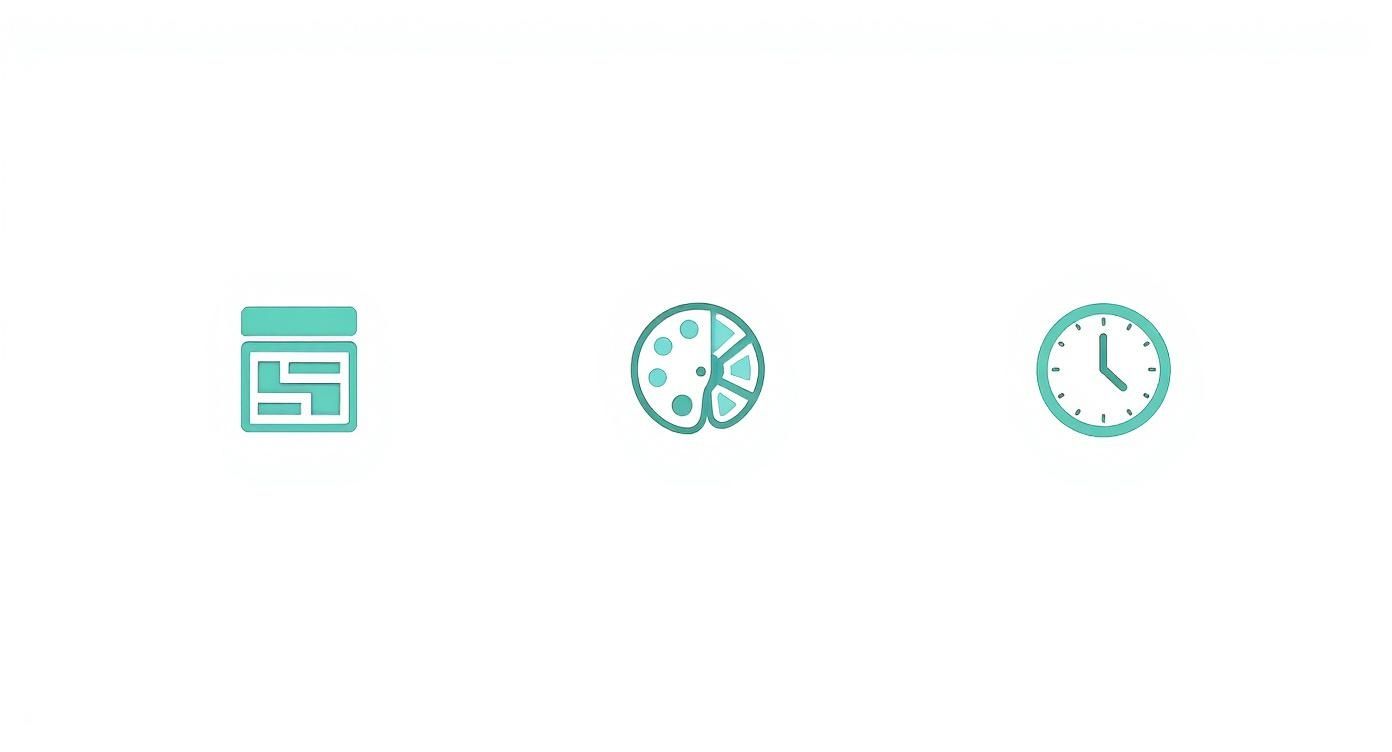
This infographic breaks down how typography, color palettes, and precise timing come together. Clear fonts, consistent hues, and sharp pacing turn a simple clip into a polished opener.
Manage Compression And Hosting
When your file size is still too hefty, call in HandBrake. It squeezes down videos without sacrificing visual crispness. After compression, choose a hosting plan that adapts quality on the fly.
- Upload to YouTube for built-in streaming optimization
- Self-host using the HTML5
<video>tag for full control
Either approach guarantees your audience sees the sharpest version of your intro, every time.
Decide When To Upgrade To Paid Custom Intros
You’ve probably hit a point where free tools handle simple cuts, but custom branding or advanced animations just won’t cooperate. As projects become more demanding, squeezing every tweak out of CapCut or DaVinci Resolve’s free tiers can turn into a serious time sink. When your workflow starts devouring hours instead of saving them, that’s a clear signal to explore paid options.
Key situations include:
- Multi-layered keyframe sequences that eat up your weekend
- 3D logo reveals demanding Cinema 4D or Blender Pro
- Campaign runs with 10+ videos, all needing a unified look
Scenarios For Paid Intros
Remember Sarah, the tech reviewer? She poured 40 hours into a slick title sequence on DaVinci Resolve. A boutique motion studio quoted $250 and delivered a polished version in two days—freeing up 38 hours for her next review.
Similarly, a podcast host spent 25 hours battling generic templates. Investing $180 on a custom pack meant getting source files, color control, and a tailored animation.
| Scenario | Time Invested | Studio Quote |
|---|---|---|
| Tech Channel Title Sequence | 40 hours | $250 |
| Podcast Branded Intro | 25 hours | $180 |
| Ad Campaign Series (10 videos) | 60 hours | $500 |
“Switching to a paid custom intro boosted our viewer retention by 20%,” says creator Maya.
When gathering quotes, keep it straightforward:
- Share your visual references, brand colors, and a rough script
- Ask about turnaround times and how many revisions they include
- Confirm final file formats, layered source files, and usage rights
How To Manage Paid Intro Projects
Once you decide to hire a studio, set clear checkpoints. A handshake on paper prevents miscommunication later.
- Specify final formats (MP4, MOV, project files)
- Agree on 2 revision rounds before extra charges apply
- Ensure you retain full usage rights for web and social platforms
If outsourcing saves you 30+ hours on editing, it pays for itself. Expert designers can boost brand recall by 15%, and you can focus on creating content instead of fighting templates.
Many creators notice a 12% bump in subscriber growth after swapping DIY intros for professional ones. Free tools are great for getting started—paid intros help you add that polish and clarity.
FAQ
Hit a wall when crafting a free intro? These answers come from hands-on sessions across diverse projects. We keep it quick, tool-agnostic, and practical—so you can try something new right away.
What Is The Best Free Tool To Create An Intro Video
For total beginners, Canva (canva.com) is a lifesaver with its drag-and-drop interface and ready-made assets. Browse 100+ free templates, swap in your logo, and you’re done.
If you crave more editing muscle, DaVinci Resolve unlocks professional-grade keyframes and fine color controls.
- Ease Of Use: Quick template launch in Canva saves minutes
- Custom Animation: DaVinci’s keyframe editor gives you precise motion
A gaming streamer whipped up a new intro in ten minutes on Canva—and gained 15% more subscribers overnight.
How Do I Make My Intro Stand Out Without Paid Plugins
You don’t need fancy add-ons to nail a memorable opener. Focus on bold typography, a tight color palette, and a punchy sound hit.
- CapCut (capcut.com) has free motion presets for subtle movement
- Blender (blender.org) lets you spin logos on custom keyframes
One YouTuber slashed edit time by 30% using a CapCut spin effect and a free SFX sample.
Can I Export A Transparent Intro For Overlays
Absolutely. You can create alpha-channel graphics at no cost.
- Canva exports a sequence of PNGs for simple overlays
- DaVinci Resolve handles full transparency via QuickTime ProRes 4444
A boutique brand layered a transparent PNG intro over product demos—and instantly looked more polished.
When Should I Consider Upgrading To A Paid Intro
Free tools shine for DIY, but sometimes professional magic makes sense:
- Heavy 3D builds in Blender that eat hours of your time
- Episodic series needing a consistent, polished look across clips
Investing in a paid custom intro can reclaim 20+ hours of editing and boost viewer retention.
Troubleshooting Export Issues
Blurry video or drifting audio often comes down to mismatched settings. These quick checks clear most hurdles:
- Match your project’s frame size to the final export dimensions
- Choose H.264 for standard video or QuickTime ProRes for alpha channels
- Nudge your audio track if you spot any sync drift
Once you’ve run through these, your intro should look crisp and stay perfectly in sync.
Bookmark this FAQ for fast fixes whenever you hit a snag.
Ready to level up? Check out Priyansh Animations.