Ever wonder how your favorite YouTubers get those awesome, animated intros? A lot of them use a secret weapon: an After Effects intro template. Think of it like a professional shortcut. Instead of spending days building a slick animation from scratch, you get a pre-made project. All you have to do is drop in your own logo and text. The result? A killer intro in minutes.
What Are After Effects Intro Templates
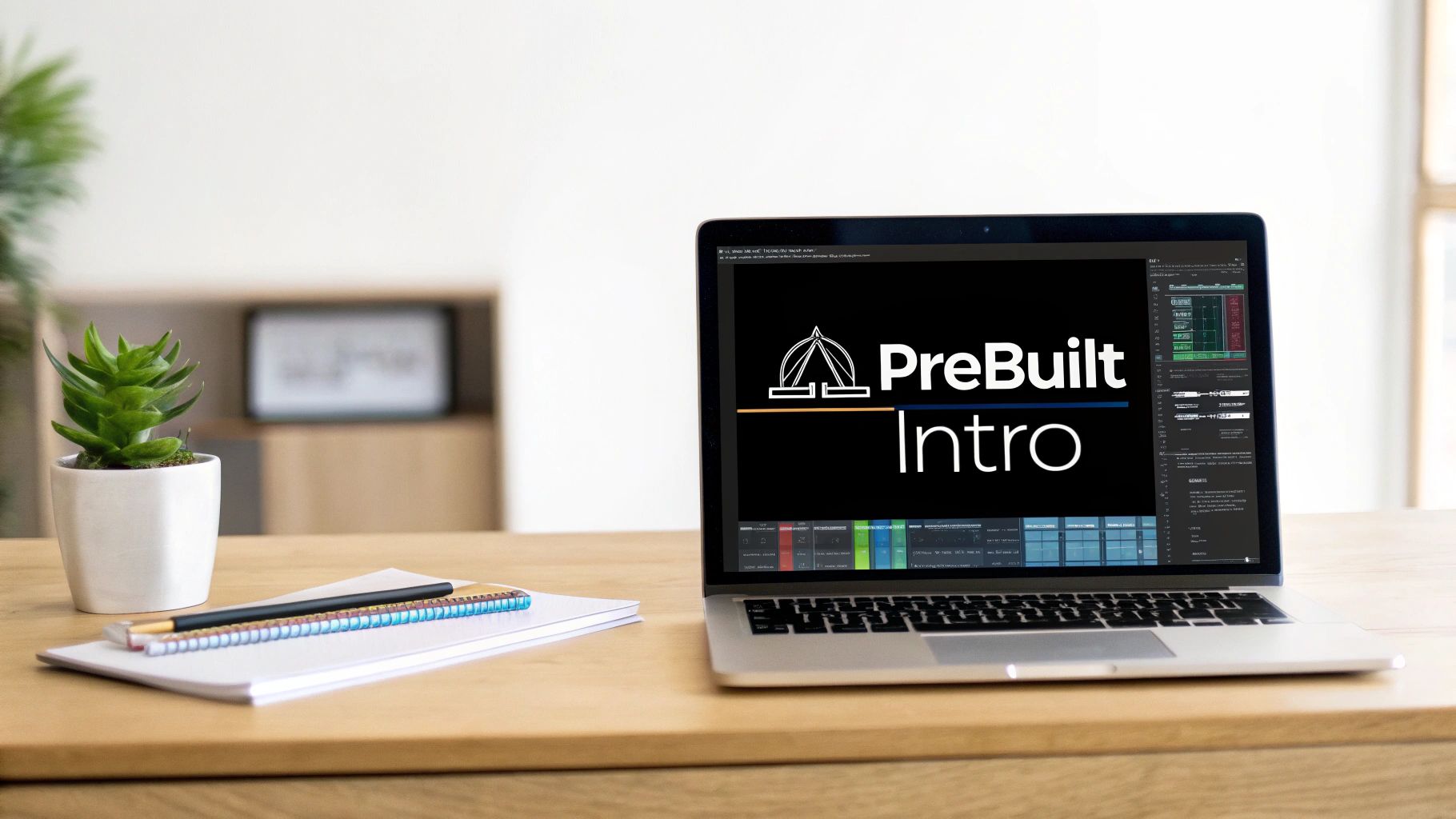
Here’s a simple way to think about it: imagine you want to bake an amazing, multi-layered cake but don't have the time or skills of a pro baker. An intro template is like a fancy cake mix from a master chef. All the hard stuff—the layers, the structure, the perfect timing—is already done for you. All you need to do is add your unique ingredients, like your logo, brand colors, and message.
Basically, these templates are ready-to-go project files for Adobe After Effects. They come packed with all the animations, cool effects, and empty spots (called placeholders) you need. This makes it super easy for anyone, even if you’re not an animation expert, to create something that looks incredible.
The Core Benefits of Using a Template
For most video creators, After Effects intro templates are a total game-changer. They put professional-level animation in your hands without the headache of learning complex software or paying big bucks for custom work. You get to focus on making great content, and the template handles making it look awesome right from the start.
The perks are pretty clear:
- Save a Ton of Time: Building an intro from zero can easily take days, or even weeks. With a template, you can have a finished, ready-to-use intro in less than an hour.
- Pro Quality on a Budget: A custom animator might charge hundreds or even thousands of dollars for a similar intro. Templates give you that same visual punch for a tiny fraction of the price.
- Look Legit Instantly: A sharp, well-made intro immediately tells your audience that your content is high-quality and worth their time.
The rise of templates has completely changed the video-making game. Now, creators have endless options, from simple, clean logo reveals to epic, movie-style title sequences. You no longer need a Hollywood budget to make a killer first impression.
Why Your Intro Matters So Much
That polished look isn't just about looking cool; it's about keeping people watching. A strong intro grabs attention and sets the vibe for your whole video. In fact, research shows why the initial seconds of a video are crucial for hooking viewers. It’s your one shot to convince someone to stick around.
Using a template isn't cheating—it's working smart. It lets you put your time and energy where it matters most: your actual content. The template just makes sure your first impression is as powerful as your message.
To help you decide what's right for you, here's a quick comparison of templates versus custom animation.
Template vs Custom Animation At a Glance
This table breaks it down, showing why templates are a smart choice for most creators.
| Factor | Using a Template | Hiring a Custom Animator |
|---|---|---|
| Cost | $50 – $200 (one-time) | $500 – $5,000+ |
| Turnaround Time | Minutes to hours | Days to weeks |
| Customization | Limited to placeholders (logo, text, colors) | Fully unique and tailored to your brand |
| Ease of Use | Beginner-friendly | Requires collaboration and clear direction |
| Best For | YouTubers, small businesses, quick projects | Large brands, specific campaigns, unique concepts |
Ultimately, templates give creators the power to achieve a level of quality that used to be only for big studios. Whether you're browsing the Priyansh Animations templates at https://www.priyansh.net/templates/ or looking elsewhere, you'll find that a high-impact intro is totally within your reach.
Getting to Know Your Template Files
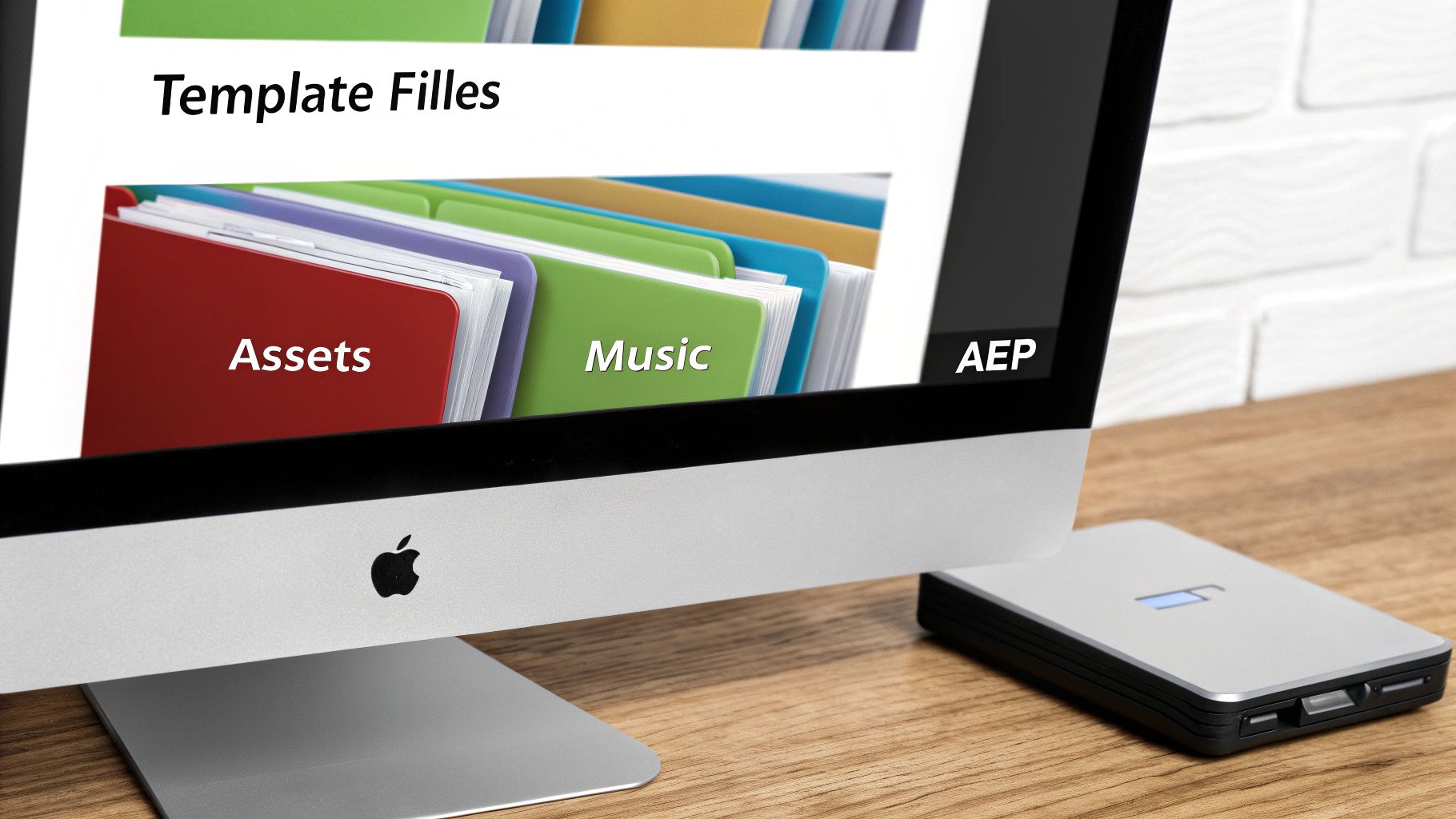
When you first open up one of our After Effects intro templates, it might look a little complicated. But it’s actually way simpler than you think. Think of it like a neatly packed toolkit—you just need to know what each tool does. Let's walk through what’s inside so you can feel totally comfortable before you even start.
After you download and unzip the template, you’ll see a clean set of folders and files. This isn't random; it's designed to make your life easier by keeping everything organized, from the animation itself to the spot where your logo goes.
What’s Inside the Box?
A good template is built to be easy. You don’t need to be an After Effects wizard to find your way around. Here’s a quick tour of what you’ll usually find:
-
The Project File (.AEP): This is the main event. The .aep file is what you’ll open in After Effects. It’s the engine that holds all the pre-built animations, layers, and effects.
-
Assets Folder: This is your workspace. Inside, you'll find clearly labeled folders for all the pieces you need to add, like your logo, images, or video clips.
-
Fonts Link/File: To make sure your text looks just right, we always include a file with links to download the exact fonts you see in the preview video.
-
Tutorial/Documentation: Your new best friend! Most templates come with a quick video or PDF guide that shows you exactly how to edit that specific project.
The whole point of a well-organized template is to save you a headache. By keeping everything in its place, you can swap out the generic content with your own in just a few minutes.
Your Pre-Flight Checklist: Software and System
Before you get creative, there are a couple of things you need to have ready. Taking a second to check these first will make sure everything goes smoothly once you start.
First, you'll need a copy of Adobe After Effects. Our templates are built just for this program, so it’s a must-have.
But just having the software isn't enough—the version is important. A template made in a newer version of After Effects (like 2024) will not open in an older one (like 2022). Always double-check the template’s description for the required software version. This one small step can save you a lot of frustration.
Do I Need Any Special Plugins?
Plugins are basically extra tools for After Effects that create cool, complex effects you can’t get out of the box. Think realistic fire, 3D objects, or fancy particle bursts. Some of the more advanced After Effects intro templates out there need them, and you might see names like Trapcode Particular or Element 3D mentioned.
However, the vast majority of our templates are proudly plugin-free. We do this on purpose so anyone can use them without having to buy extra software. If a template ever does need a plugin, we will say so very clearly in the description.
If you’re just starting out, sticking with plugin-free templates is the way to go. You can still get incredible, professional results using only the tools built right into After Effects. For example, if you want to create that iconic fairytale opening, you can find a Disney intro After Effects template tutorial that magically recreates the look using only standard features.
How to Choose the Right Intro Template
Picking one of our After Effects intro templates isn't just about finding something that looks cool. It's about finding the perfect match for your brand's personality. Think of it like choosing an outfit for a party—you wouldn't wear a tuxedo to the beach, right? Same idea. Your intro needs to match the vibe and send the right message right away.
This guide will give you a simple way to choose a template that truly represents you and your content. We'll cover everything from the overall feel to the technical details, so you can make a choice with total confidence.
Match the Mood to Your Message
First things first: the template’s energy has to match your brand’s voice. Your intro sets the tone for everything that follows, so this is a big deal. If your content is fun, upbeat, and energetic, your intro should scream that from the very first second.
Let’s look at a few examples:
- For a Gaming Channel: You’ll probably want something fast, dynamic, and maybe a little edgy. Look for templates with quick cuts, glitch effects, or bold animations that hook a viewer instantly.
- For a Corporate Presentation: Here, you want to look clean, professional, and trustworthy. A minimalist template with smooth, elegant animations and a simple color scheme is a much better fit.
- For a Travel Vlog: An adventurous, cinematic style is perfect. Templates with film burns, graceful text, and sweeping motions can create that sense of wonder and excitement you’re looking for.
Your intro is your brand’s digital handshake. It should immediately tell your audience who you are and what to expect. If the tone is off, it can feel weird and might be all it takes for a viewer to click away.
Check the Structure and Placeholders
Once you've found a few templates with the right vibe, it's time to look under the hood. A cool-looking template is only useful if it can actually hold your stuff. You need to be sure it has the right "slots," or placeholders, for all your brand's key elements.
Before you buy, ask yourself these simple questions:
- Does it have a spot for my logo? Most intros do, but double-check that the placeholder’s shape and style work well with your logo.
- Is there room for my tagline or channel name? Make sure you see text spots where you can easily drop in your main title and any other text.
- Are there placeholders for images or video clips? Some templates let you add your own footage, which is awesome for adding a more personal touch.
Making sure the template fits your needs ahead of time will save you a ton of trouble later. If you want to learn more about what makes a great opener, our complete guide on how to make a video intro is packed with helpful tips.
Think About the Technical Details
Finally, let's talk tech stuff. Getting these details right ensures your intro looks sharp and works perfectly, no matter where you post it. Don't worry, you don't need to be a video genius to figure this out.
Here are the key things to look for:
- Resolution: Always, always go for at least Full HD (1920×1080). If you’re making videos for big screens or just want to be ready for the future, choosing a 4K (3840×2160) template is even smarter.
- Length: An intro should be short and sweet. For a platform like YouTube, anywhere from 5 to 10 seconds is perfect. For social media stories or shorts, you might want something even quicker, like 3 to 5 seconds.
- Platform Fit: Think about where this video will be seen. A wide, cinematic intro might look amazing on YouTube, but it'll get awkwardly cut off on a vertical platform like Instagram Reels or TikTok. Some templates even come with different versions for different screen sizes, which is a huge plus.
Customizing Your Template Step by Step
Alright, this is where the fun begins. You've picked out the perfect After Effects intro template, and now it's time to make it your own. Think of this less like intense video editing and more like a paint-by-numbers project—the outline is already there, you just need to add your personal colors.
We're going to walk through this together, one step at a time. You'll be amazed at how simple it is to turn a generic template into a slick intro that looks like it was custom-made for your brand. No tech wizardry required, just a clear roadmap.
Step 1: Finding and Replacing Placeholders
When you first open the template's project file (.AEP), you'll see a panel called "Project" that’s like a filing cabinet for everything inside. Good templates are built to be easy to use, so look for folders with obvious names like "EDIT HERE," "YOUR LOGO," or "REPLACE TEXT." That's where you start.
The whole process is designed to be super intuitive:
- Find the Logo Placeholder: Look for a composition (it looks like a little filmstrip icon) labeled for your logo. Just double-click it.
- Import Your Logo: Now, drag your own logo file—a PNG with a transparent background works best—into this new window.
- Position and Scale: Hide or delete the default placeholder logo. Adjust the size and position of your logo until it looks just right. That’s it! Your logo will now show up perfectly in the final animation.
Changing the text works the exact same way. You'll find spots for your main title and tagline. Double-click, type in your text, and the template handles the rest, including all the cool animations. For anyone new to this, checking out guides on video editing for beginners can give you a nice foundation before you dive in.
Step 2: Adjusting Colors to Match Your Brand
With your logo and text in place, let's make the intro truly yours by adding your brand's colors. In the old days, this meant digging through tons of layers to change every single element. Luckily, modern After Effects intro templates have made this incredibly simple.
Most high-quality templates come with a "Color Control" layer. This single layer is basically a master remote for the entire project's color scheme.
Think of the color control panel like a dimmer switch for your whole animation. Instead of changing every lightbulb one by one, you just slide one control, and the entire room's mood changes instantly. It’s that easy.
You'll find simple sliders or color pickers for the background, text, special effects, and more. Just click a color box, pop in your brand's specific hex code, and watch the whole intro update in real-time. It's the fastest way to get everything looking perfectly on-brand.
Step 3: Fine-Tuning Timing and Animation Speed
What if the intro feels a little too fast or slow for your video's vibe? While the main animation is set, you often have some control over the overall speed. This is where a cool technique called time-remapping comes in, letting you stretch or squish the animation without having to rebuild it.
It sounds more complicated than it is. If you're feeling adventurous and want to master this skill, our detailed guide on After Effects time remapping breaks it down into easy steps. For most people, though, the default timing has been carefully planned by the designer to look awesome right out of the box.
Step 4: Adding Your Own Soundtrack
The final piece of the puzzle is sound. The music or sound effects in an intro are just as important as the visuals for setting the right tone. Most templates either come with a placeholder audio track or are silent, giving you the freedom to add your own sound.
This step is as simple as dragging and dropping:
- Find Your Audio: Pick a royalty-free music track or sound effect that matches the energy of your intro.
- Import the File: Drag the audio file right into your After Effects project panel.
- Add to Timeline: From there, just drag the audio file into your main animation's timeline. You're done.
This easy customization process is a huge reason why templates are a favorite tool for so many creators. In fact, it's estimated that over 70% of YouTube creators and digital marketers use editable intro templates to speed up their work and keep their branding consistent. With these steps done, your intro is now officially customized and uniquely yours.
Rendering and Exporting Your Finished Intro
Alright, you’ve done the fun part. You’ve put in your logo, matched the colors to your brand, and the timing is perfect. Your customized After Effects intro template is looking sharp, and now it’s time for the final step: turning your project into a real video file you can share with the world.
This last step is called rendering. Think of it like baking a cake. You’ve mixed all your ingredients—the logo, text, and colors—into the template. Rendering is like putting that mix in the oven. It combines all the layers, effects, and animations into a single, clean video file, like an MP4.
Using Adobe Media Encoder for the Best Results
While you can export directly from After Effects, the pros use a partner program called Adobe Media Encoder. Sending your project here gives you way more control and better quality. Plus, it lets you keep working in After Effects while your video renders in the background. It’s a total game-changer.
Getting your project over to Media Encoder is super easy.
- In After Effects, just go to Composition > Add to Adobe Media Encoder Queue.
- Media Encoder will open up with your project loaded and ready to go.
- All that’s left is to pick your export settings.
This infographic gives you a quick visual recap of the customization steps that lead up to this final export.
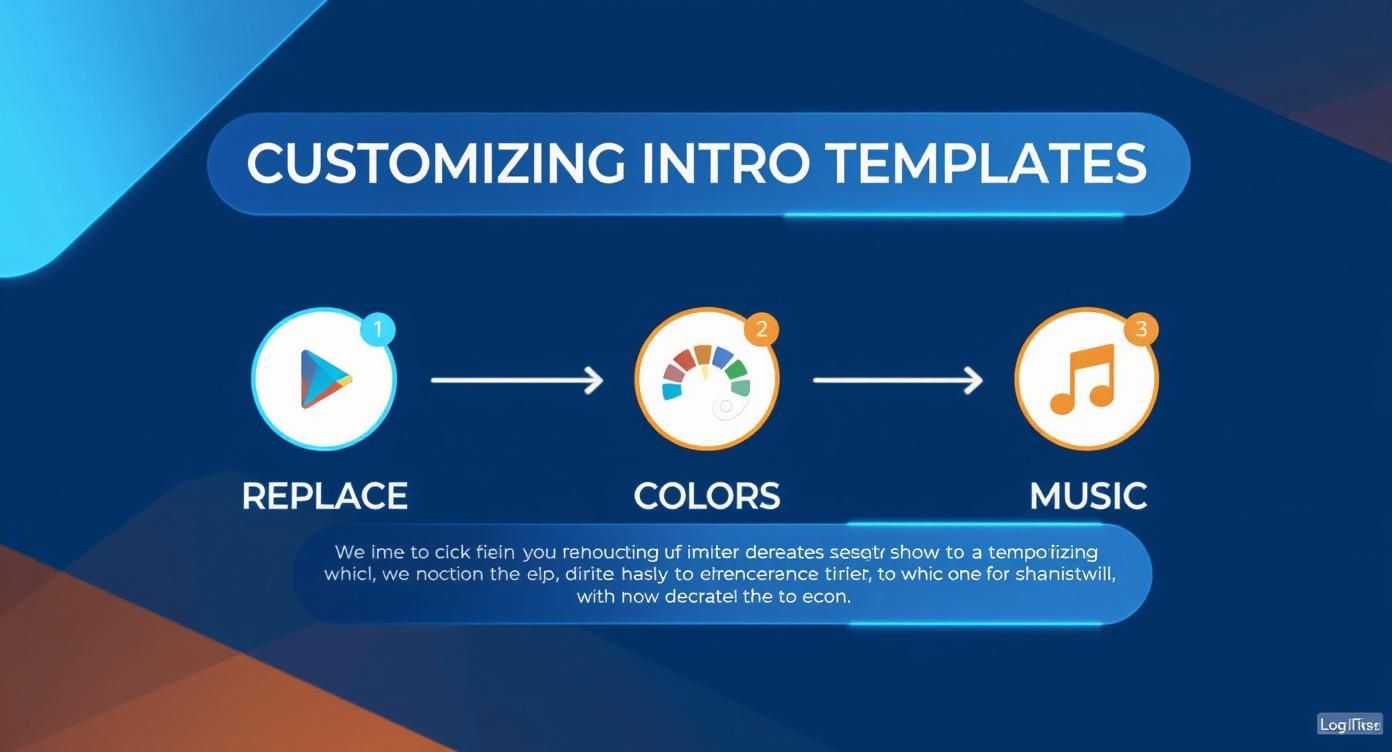
As you can see, getting everything personalized before you hit render is a straightforward process.
The Best Export Settings for Your Platform
Choosing the right settings is key. You want your intro to look crisp and professional without creating a huge file that takes forever to upload. The good news? You don’t need to be a video compression expert. Media Encoder has presets that do all the heavy lifting for you.
To get the best results without the guesswork, here are our go-to presets for the most common platforms.
Recommended Export Settings for Popular Platforms
| Platform | Format | Preset | Key Benefit |
|---|---|---|---|
| YouTube | H.264 | Match Source – High Bitrate | The perfect balance of quality and file size for YouTube's system. |
| Instagram/TikTok | H.264 | Match Source – High Bitrate | Keeps your video looking sharp and vibrant on phone screens. |
| General/Website | H.264 | Match Source – High Bitrate | A universal standard that works everywhere and looks great. |
These settings make sure your video looks its best, no matter where you post it. If you're working on another project and want to build something from scratch, our guide on how to animate a logo covers more advanced techniques.
Pro Tip: Before you hit that big green "Start Queue" button, always double-check your output file name and where you’re saving it. There’s nothing worse than rendering a video and then not being able to find it!
Quick Troubleshooting for Common Issues
Sometimes, rendering hits a bump in the road. It happens to everyone! If you run into trouble with your After Effects intro templates, here are a few quick fixes.
-
"My render is super slow!" Rendering is tough on your computer. Try closing other programs, especially web browsers with lots of tabs open, to free up memory and power. Also, make sure you have plenty of free space on your hard drive.
-
"The final video looks blurry!" This is almost always an export settings issue. Go back to Media Encoder and make sure you’ve selected the "Match Source – High Bitrate" preset. This tells the software to export at your project’s full resolution, keeping everything sharp.
-
"Media Encoder won't connect!" This usually happens when After Effects and Media Encoder aren't the same version. Open your Creative Cloud app and make sure both programs are fully updated.
With these simple tips, you'll be rendering your finished intro like a pro in no time.
Got Questions? We've Got Answers
It’s totally normal to have a few questions before diving into something new. You've seen what After Effects intro templates can do, but let's clear up some of the practical stuff so you can feel confident moving forward.
Think of this as your quick-start guide to the details. We'll cover software, skills, and what to expect after you find a template you love. Our goal is simple: to make sure you have all the info you need to get started without any confusion.
Do I Really Need to Be an After Effects Whiz?
Not at all. In fact, that’s the whole point! Templates are designed to be user-friendly, whether you’re opening After Effects for the first time or you’ve been using it for years. Knowing your way around the program helps, but it's definitely not required.
Good templates do all the hard work for you. Everything is neatly organized with clearly labeled folders and simple controls. Instead of getting lost in complex animations, you’ll focus on the fun stuff:
- Dropping your logo into its designated spot.
- Typing your name into a text box.
- Picking your brand colors from an easy-to-use menu.
Plus, most templates include a short video tutorial showing you exactly what to do, step-by-step. It's like having the designer sitting next to you, guiding you through it.
What if I Don’t Have After Effects at All?
This is a common situation, but it doesn't mean you're out of luck. If you don’t have the software, don’t have a computer that can handle it, or just don’t have time, there’s an even easier option.
Here at Priyansh Animations, we offer a "we do it for you" service. You just pick the After Effects intro template you want, send us your logo and text, and our team of animators takes care of everything else. We do all the technical work and send you a polished, ready-to-use video file (like an MP4).
It's the best of both worlds: you get the amazing value of a template with the hands-off convenience of a custom animation service. You get a pro intro without touching any software or needing any tech skills.
What Kind of Support Can I Expect?
When you buy a template from a good source, you’re not just getting a file—you’re getting a product that someone wants you to be happy with. Good creators and marketplaces will always help you out if you get stuck.
Here’s what you can usually count on:
- Detailed Guides: A PDF or help file explaining how to edit everything.
- Video Walkthroughs: A tutorial showing the exact customization process for that specific template.
And if you run into a real technical problem—like something in the file isn't working right—you can almost always contact the creator's support team. They’ll help you fix the issue so you can get the result you paid for. This support is a huge reason why it pays to buy from trusted creators.
Can I Use My Finished Video for Commercial Projects?
Yes, absolutely! This is one of the best things about templates. When you buy a license, you're almost always given the rights to use the final video you create for both personal and commercial projects.
That means you’re free to use your intro for things like:
- Your monetized YouTube channel
- Paid ads on social media
- Your company’s website or in presentations
- Promotional videos and online courses
There's just one main rule: you can't resell or give away the original After Effects project file (.AEP). That file is for you and you alone. But the final video you export is all yours to use to build your brand and grow your business.
Ready to find an intro that makes your content impossible to ignore? Dive into the full catalog at Priyansh Animations and let's create something amazing together.