Let's be real, you can find some awesome after effects intro templates free online. Think of them as a cheat code for making professional-looking videos. They give you a cool foundation to build on, so you can worry less about complicated animations and more about the story you want to tell.
Why Free Templates Are Your Best Friend
Ever watched a YouTube video with a sick intro and thought, "How in the world did they do that?" The secret isn't always spending days animating every little detail. A lot of the time, it's just a really good template.
An After Effects intro template is basically a pro-level blueprint for your video's opening. Instead of staring at a scary blank screen, you start with a design that's already 90% finished. This is a total game-changer, whether you're a video pro or just messing around for the first time.
Save Time, Make Better Content
The biggest win here is the time you get back. Making a cool, flashy intro from scratch can take forever, especially if you're not a motion graphics wizard. A template cuts that whole process down to minutes. You just drop in your logo, change the text, and bam—you're basically done.
That time you save can be spent on what really matters: your story, your editing, and making the rest of your video amazing.
Learn from the Pros for Free
Templates are also like secret-weapon learning tools. When you open up a project file made by a pro, you get a peek behind the curtain at how they build cool animations. It's like a backstage pass to see how experts use effects, time their animations, and keep everything organized.
By taking apart a free template, you’re basically getting a free motion design lesson. It’s a hands-on way to learn stuff that would take you months to figure out from tutorials alone.
The whole reason free After Effects intro templates are so popular is that people needed a way to make awesome videos without a Hollywood budget. Many are royalty-free or have a Creative Commons license, which means you can use and change them without stressing about copyright. That's why you see them everywhere, from company ads to passion projects.
Look Like a Pro Without Spending a Dime
At the end of the day, using a template levels the playing field. It lets you create content that looks just as good as stuff from creators with huge budgets. You don't have to hire a freelance animator or spend a ton of cash to make a killer first impression.
Using a free template isn't cheating; it's working smarter. It's one of the fastest ways to make your video's quality jump way up.
For anyone looking for even faster options, checking out the best AI video generators can open up a whole new world beyond traditional templates.
Template vs. Scratch: The Showdown
Still not sure? Here’s a quick breakdown to help you decide what’s best for your next video.
| Aspect | Using Free Templates | Building from Scratch |
|---|---|---|
| Time Investment | Low. Minutes to hours to tweak. | High. Days or even weeks to build. |
| Skill Required | Beginner to Intermediate. Just need basic AE skills. | Advanced. You gotta know your stuff. |
| Cost | Free or very cheap. | Can be High. Your time is valuable, and pros cost a lot. |
| Uniqueness | Limited. Someone else might use the same one. | Totally Unique. It's 100% yours. |
| Learning Curve | Easy. You're just customizing, not creating. | Steep. A great way to learn, but it’s a grind. |
Honestly, both ways are cool. Templates give you speed and a professional look right away, while starting from scratch gives you total creative freedom and something nobody else has.
Where to Find Good Templates (Without Getting a Virus)
Googling "after effects intro templates free" can feel like walking through a minefield. You click a link that looks good, and suddenly you’re drowning in pop-ups and sketchy download buttons. So, how do you find the good stuff without risking your computer's life?
The secret is to stick to the well-known, trusted spots online. Think about it: you wouldn't buy a new phone from some random person in an alley, right? You'd go to a real store. The same idea applies here. Stick with websites that have a reputation to protect.
Safe Havens for Downloads
Some websites are built just to give creators high-quality, safe stuff to use. They hand-pick their free collections, so you know everything is checked for quality and is safe to download. This is your best and safest bet.
A couple of the best places to start looking are:
- Mixkit: This site is a goldmine. It has a fantastic collection of free, hand-picked After Effects templates. Everything looks amazing, and the licensing is super clear. No confusing rules.
- Motion Array: This is mostly a paid service, but they often have a bunch of free assets, including templates, to show you what they offer. These freebies are always top-notch quality.
These sites take the guesswork out of it. You can download and not worry about your computer catching something nasty.
Pro Tip: Even on trusted sites, check for reviews or download counts. A template with thousands of downloads and good comments is always a safer pick than one with zero feedback.
Creator Hangouts and Portfolios
Besides the big websites, creative communities are awesome places to find after effects intro templates free of charge. Talented designers often share their work to build a following or just to be cool and give back.
You can find some amazing templates shared directly by artists on places like YouTube and Behance. On YouTube, creators often put a download link right in the video description. On Behance, designers might share project files as part of their portfolio. The real win here is finding unique, artsy templates you won't see anywhere else. For even more great options, check out a detailed guide on After Effects intro templates to discover more high-quality choices.
Red Flags to Run From
Knowing where to look is half the battle. Knowing what to avoid is just as important. If a website feels shady, it probably is.
Here are a few warning signs that should make you hit the back button immediately:
| Red Flag | Why It's a Problem |
|---|---|
| Forced Sign-Ups | If a site wants your life story for a "free" download, something's fishy. |
| Weird Redirects | Clicking the download button shouldn't send you on a pop-up adventure across the internet. If it does, leave. |
| ".exe" Files | Templates should be in a .zip file with an .AEP project file inside. If you see a ".exe," run. It's likely a virus. |
| Confusing Rules | If you can't easily find out how you're allowed to use the template, it's not worth the risk. |
In the end, trust your gut. A legit site will make downloading simple and clear. Stick to trusted platforms and creative communities, and you'll have an awesome collection of safe templates in no time.
So, you found the perfect template and downloaded it. Now what? Looking at that zipped folder can feel like getting a giant Lego set with no instructions. But don't worry. This next part is way easier than you think.
This is where the magic happens—turning that generic file into an intro that screams you. Getting from download to a finished intro is faster than you'd imagine.
Unpacking Your New Toy
First, you need to unzip the file you downloaded. Inside, you'll find a few folders and files. Every template is a bit different, but the good ones are usually organized in a pretty standard way.
Here’s what you’ll probably find inside:
- The Project File (.AEP): This is the main thing. The
.AEPfile is what you'll open in After Effects. - Fonts Folder: This is super important. Any special fonts the designer used should be here. Make sure to install these before you open the project, or you'll get a bunch of "missing font" errors.
- Assets/Footage Folder: This is where any images, video clips, or sound effects live.
- Readme.txt: Don't ignore this! It often has helpful tips from the creator and, most importantly, the rules for using the template.
This image gives you a quick visual of the whole process, from finding the template to getting it ready to edit.
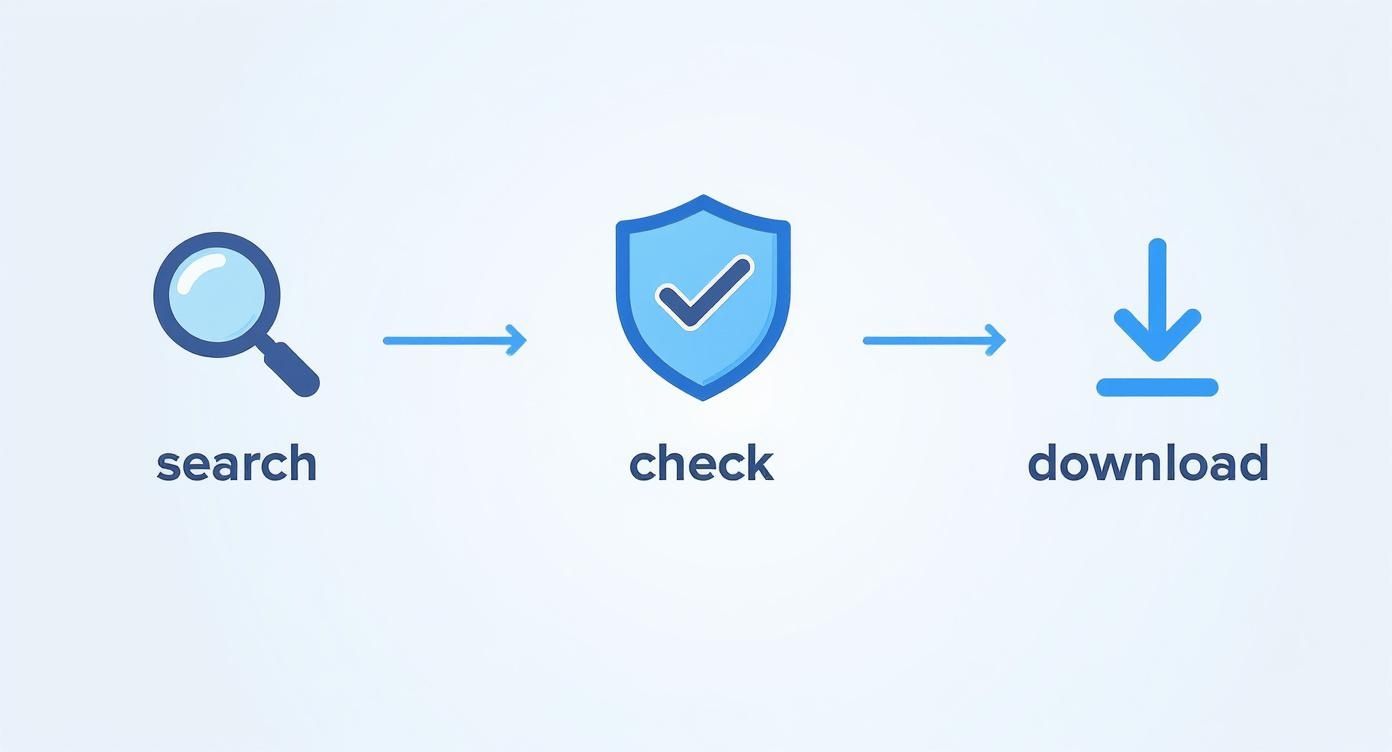
Follow these steps—stick to safe sites, check the rules, and download organized files—and you'll have a smooth experience.
Making Your First Edits
Okay, you've installed the fonts and opened the .AEP file. After Effects can look complicated, but for now, you only need to focus on two main windows: the Project Panel and the Timeline.
Think of the Project Panel like a filing cabinet; it shows you all the parts of the template. A good designer will have organized everything into neat folders. Your mission is to find the "placeholder" compositions.
Look for compositions with names like "EDIT HERE," "YOUR LOGO," or "REPLACE TEXT." These are special spots the creator made for you to put your own stuff without breaking the animations.
Just double-click one of those, and it will open in its own timeline. From there, it's pretty much drag-and-drop. Drag your logo file into the Project Panel, then drag it into the placeholder timeline. Hide or delete the original placeholder, and you're all set.
Rendering Your First Draft
Once you've put in your logo and changed the text, it's time to see what you've made. "Rendering" is just the fancy word for turning your After Effects project into a normal video file, like an MP4.
Go to Composition > Add to Render Queue. This will open a new panel at the bottom of your screen. For your first try, the default settings are usually fine. Just click the text next to "Output To," pick where you want to save it, give your file a name, and hit that big Render button.
Free templates are total game-changers. In fact, some studies show that about 65% of freelance video pros use them, which can cut the time it takes to make an intro by up to 70%. By just unzipping, replacing placeholders, and rendering, you're using the same smart workflow the pros use. If you want to dive deeper, we have a full tutorial on how to use an After Effects template that goes into more detail.
How to Make Any Template Your Own
Grabbing a free template is a great first step, but you don't want your video to look like a copy of someone else's. The real fun starts when you take that pre-made design and inject your own personality into it.
Anyone can swap out a logo. What makes an intro feel truly professional are the little details. Let's look at three easy tweaks that can make any template feel like it was made just for you: colors, fonts, and timing.
Master Your Colors
The fastest way to put your brand's stamp on a template is by changing the colors. That generic blue and white animation can instantly feel like your video once you use your signature colors. It’s a quick visual cue that tells viewers this is your content.
Luckily, many of the best after effects intro templates free to download come with a special "Control Layer." Think of it like a master remote for the project's whole look. Instead of digging through tons of layers to change every single color, this one layer does it all.
Just look for a layer near the top of your timeline, usually called "Controls," "Color," or "Settings." Click on it, and you'll find color pickers in the "Effect Controls" panel. Change a color there, and watch it update across the whole animation. It's a lifesaver.
Find the Perfect Font
Let's be real: fonts have personalities. A clean, modern font says something completely different than a bold, classic one. The font that comes with the template might be fine, but it's probably not your brand's font.
Changing the font is a simple tweak that makes a huge difference. If you don't have a brand font yet, you can find thousands of free, commercially-safe options on sites like Google Fonts.
Once you've installed a new font, using it in After Effects is easy:
- First, select the text layer you want to change in the timeline.
- Next, find the "Character" panel (usually on the right side).
- Finally, find your new font in the dropdown menu and select it.
That's it. This tiny change helps make sure your intro's style matches your channel or business perfectly.
Your template is just a starting point—the real magic is in the details you change. By tweaking colors, fonts, and timing, you inject your brand’s DNA into the animation, making it truly yours.
Adjust the Animation Timing
Ever watched an intro and felt like it was too fast? Or maybe it dragged on a little too long? You're not stuck with the original timing. You have full control over the animation's keyframes. These are the little diamond-shaped markers on your timeline that tell an object where to be and when.
To speed things up, just slide the keyframes closer together on the timeline. If you want a slower, more dramatic entrance, drag them further apart. Here's a pro tip: select any layer and press the "U" key. This will instantly show you all of its keyframes so you can start messing with them.
If you want to get better at making things move with purpose, our guide on how to animate a logo breaks down the basics you can use right here. A few small timing changes can make all the difference, making sure your intro has the perfect vibe for your video.
How Licensing Works (So You Don't Get in Trouble)
https://www.youtube.com/embed/0C4HNvlSqqY
I know, I know. This is the boring part everyone wants to skip. But trust me, it's super important for any creator who's serious about their work. Seeing "free" next to a template feels like winning the lottery, but that word usually comes with a few rules.
Think of a license as the rulebook the designer gives you for their creation. Following the rules keeps your channel safe from copyright strikes and shows respect for the artists sharing their work for free. It’s a tiny bit of homework that lets you use these amazing tools without worry.
The Two Main Types of Licenses
When you download templates, you'll see they usually fall into two main categories. Knowing the difference is a big deal, especially if you ever want to make money from your videos.
-
Personal Use: This is for projects that aren't for business or profit. Think of a video for a family event, a school project, or something you're just sharing with friends. It's just for fun.
-
Commercial Use: This is the one you need if your video is connected to money in any way. This includes monetized YouTube channels, ads for a business, or any video with paid promotions.
If you're trying to grow a channel or build a brand, always look for templates that clearly say they are free for commercial use. Any good download site will make this information easy to find.
Here’s the one rule to remember: if money is involved at all, you need a commercial license. It's way better to be safe now than to deal with a copyright claim that could get your video taken down later.
Creative Commons and Why Giving Credit Is Cool
You'll see the term Creative Commons (CC) a lot. It's not just one license, but a whole family of them with slightly different rules. For free intro templates, the most common one you'll find requires "Attribution."
Don't let the official name scare you. Attribution just means you have to give credit to the person who made the template. It's your way of saying "thanks" and helping other people find their cool work. And it's super easy to do.
Most of the time, all you have to do is add one line to your YouTube video description, like this:
Intro Template by [Creator's Name] from [Website]
That's it. A few seconds of typing keeps you on the right side of the rules and helps support other creators. Some designers even make cool versions of famous intros, like movie studio openings. For instance, you can find a 20th Century Fox intro free template online, and its page will clearly explain the simple rules for using it.
Questions Everyone Asks About Free AE Templates
Got a question about that free After Effects intro template you just downloaded? You're not alone. Getting these things to work right can sometimes feel like solving a puzzle. Let's go over some of the most common problems people run into and get you back to making cool stuff.
Why Is After Effects Shouting "Missing Files" at Me?
Ah, the classic "missing files" error. We've all been there. When you open a template and see this warning, it just means After Effects is looking for something—like a font, a logo, or a background—and can't find it. Don't panic, it's usually an easy fix.
Most of the time, the problem is a missing font. Before you even open the project file, check the folder you downloaded. Look for a subfolder called "Fonts" or a text file that lists the fonts you need. Install those first.
If that doesn't fix it, you can tell After Effects where the file is:
- Go to your Project Panel and find the item with the missing file icon.
- Just right-click it and choose "Replace Footage."
- Then, find the file on your computer and select it.
Good templates usually have everything you need packaged together to avoid this, but it’s a good skill to learn anyway.
Can I Really Use These for My Monetized YouTube Channel?
Generally, yes! You can definitely use after effects intro templates free for a monetized channel, but it all comes down to one important thing: the license. Many creators let you use their work for free commercially, but they often ask for "attribution" in return. This just means giving them a quick credit in your video description.
Always, always look for a "readme.txt" file or a license section on the website where you downloaded the template. If it says "Personal Use Only," you can't use it on a channel that makes money. If you're not sure, play it safe and stick with templates that clearly state they are free for commercial use.
My Playback Is Super Laggy—What's Going On?
Some of these free templates are surprisingly complex and can make your computer work really hard. If your preview is stuttering so much you can't even watch it, the quickest fix is to lower the preview quality.
In your Composition panel, you'll see a dropdown menu that probably says "Full." Just change that to "Half" or even "Quarter." This only affects the quality of the preview while you work; your final rendered video will still be in beautiful full quality.
Here's another trick I use all the time: hit the Caps Lock key. This tells After Effects to stop trying to render a preview every time you move something. It's a lifesaver when you're just moving stuff around and don't need to see the full animation update constantly.
For more answers to common problems, our big FAQ page on video templates has tons of other troubleshooting tips.
Ready for an intro that’s truly unique without the hassle of customization? Priyansh Animations creates stunning, custom video intros based on your title and brand. Choose a professional design, provide your text, and get a polished video delivered fast. Start your project today at priyansh.net.